How to Add Funds to Your PlayStation Wallet
Last reviewed:

On this page7
Your PlayStation wallet is the balance you spend on games, add-ons, and subscriptions in the PlayStation Store. Each adult account has one, and you can add money with a gift card or a payment method.
Here is how both work, how wallet funds are spent, and what to know before you add any money.
Ways to add funds to your PlayStation wallet
Sony says you can add funds to a wallet using a valid payment method or a PlayStation Store gift card.
Method 1: redeem a gift card (no payment card needed)
This is the simplest option if you don't want to link a card. You buy a card, redeem the code, and the amount goes straight into your wallet.
- 1Buy a PlayStation gift card that matches your account's region.
- 2Open the PlayStation Store and choose Redeem Code.
- 3Enter the 12-digit code and confirm.
Our step-by-step guide shows how to redeem a PlayStation gift card on PS5, PS4, the web, and the app.
Method 2: add funds with a payment method
If you have a payment method saved on your account, you can add funds from your console:
- 1Go to Settings > Account Management > Account Information.
- 2Select Wallet and sign in with your account.
- 3Select Add Funds, then confirm the details shown and select Yes.
Sony's own guide: How to add funds to your wallet on PlayStation Store.
How wallet funds are spent
- Wallet funds are used first. If they don't cover the full price, the remainder can be paid with another payment method.
- Subscriptions can need a payment method. Sony says you may still be asked to add one when you buy a subscription with wallet funds.
- Funds can't be refunded. Sony says funds added to your wallet can't be refunded.
Because of that last point, add only what you plan to use. Start with the price in your own PlayStation Store, then see our price guide to choose a card amount.
Can children add wallet funds?
No. Sony says a child account doesn't have a wallet and can't add funds. A child can buy content using the family manager's wallet, within a monthly spending limit that is set to 0 by default. To top up for a child, redeem the card on the family manager's account.
Before you add funds: the region check
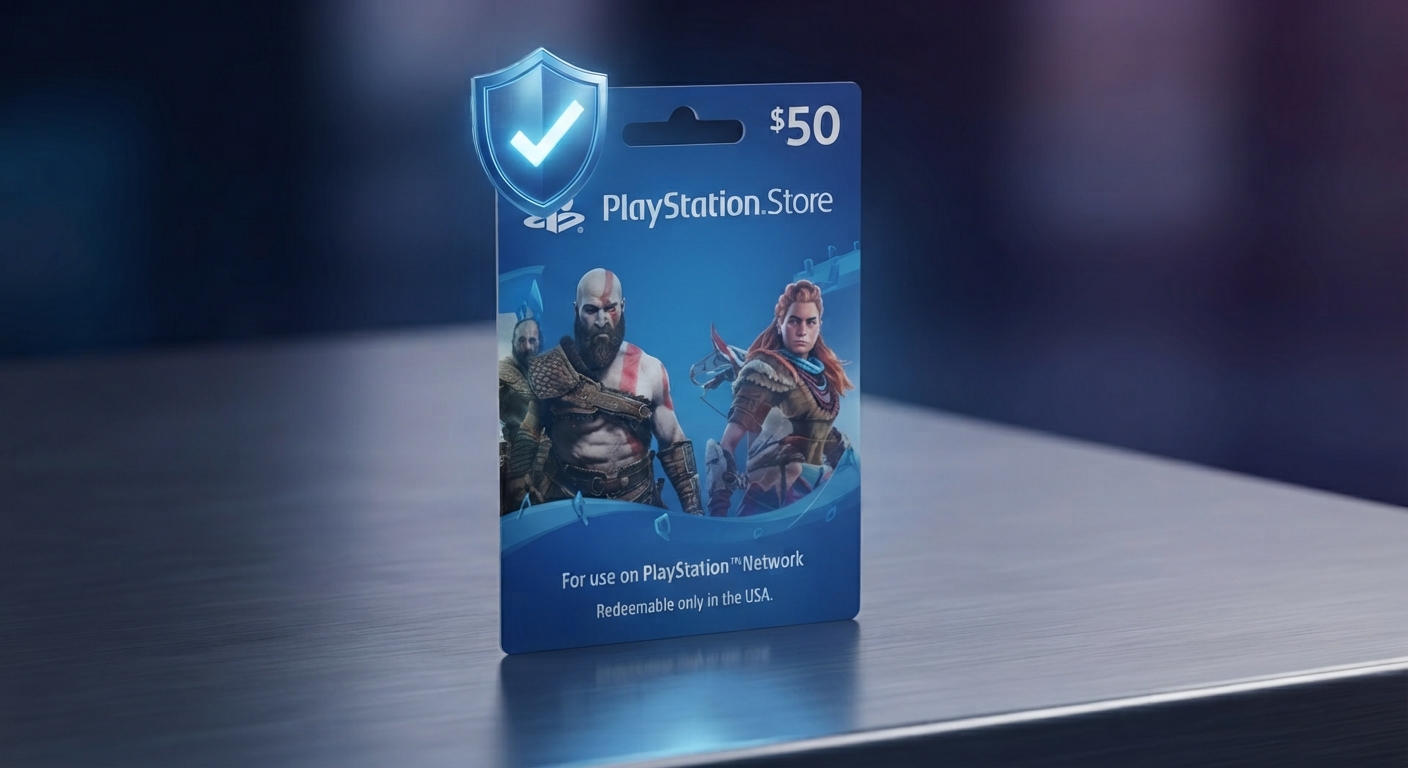
A gift card works only on an account in the same region, and Sony says an account's region can't be changed later. Check your account region first, then buy a matching card. Our region guide walks through it.
If adding funds fails
- Check the PlayStation status page. If the network has problems, you may not be able to add funds until all services show as running.
- Sign out of PlayStation and sign back in.
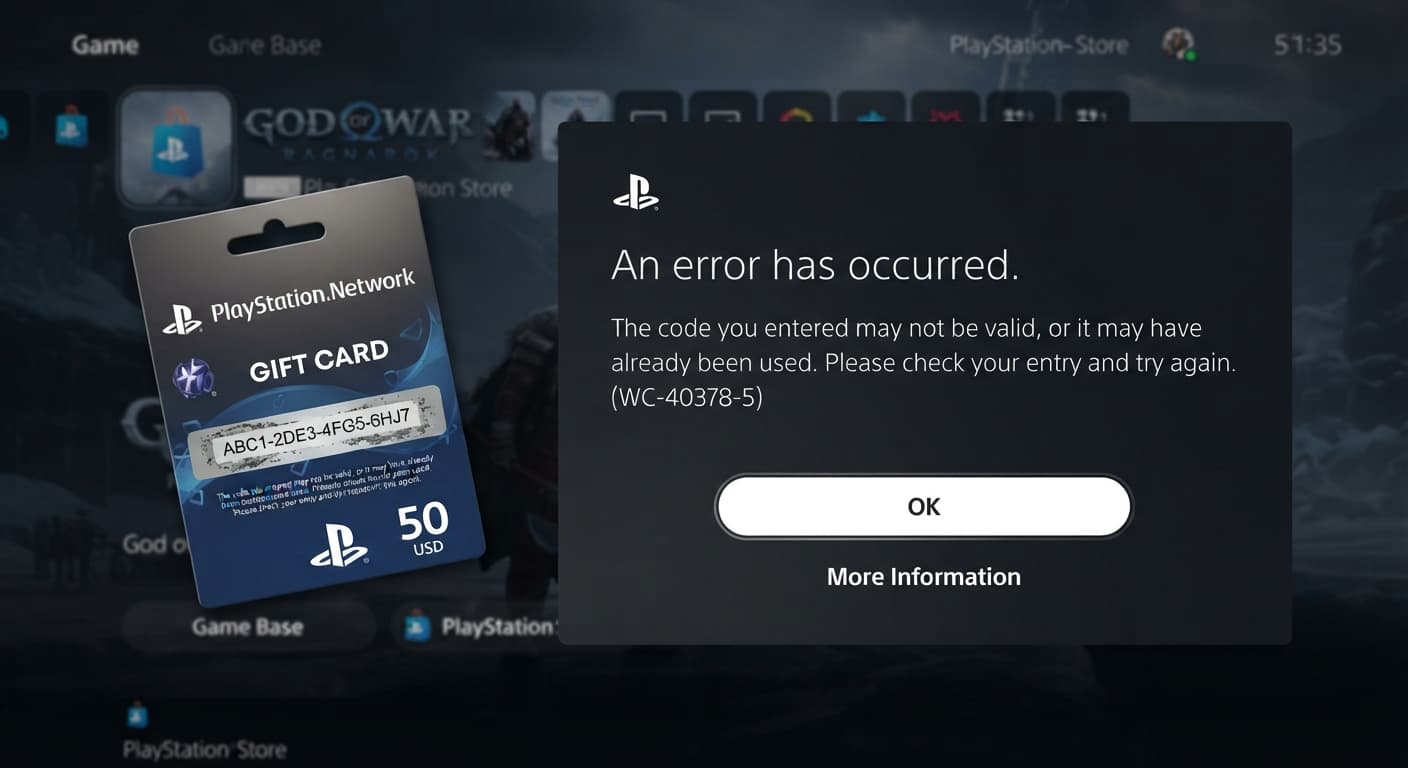
- If a gift card code is rejected, follow our troubleshooting guide.
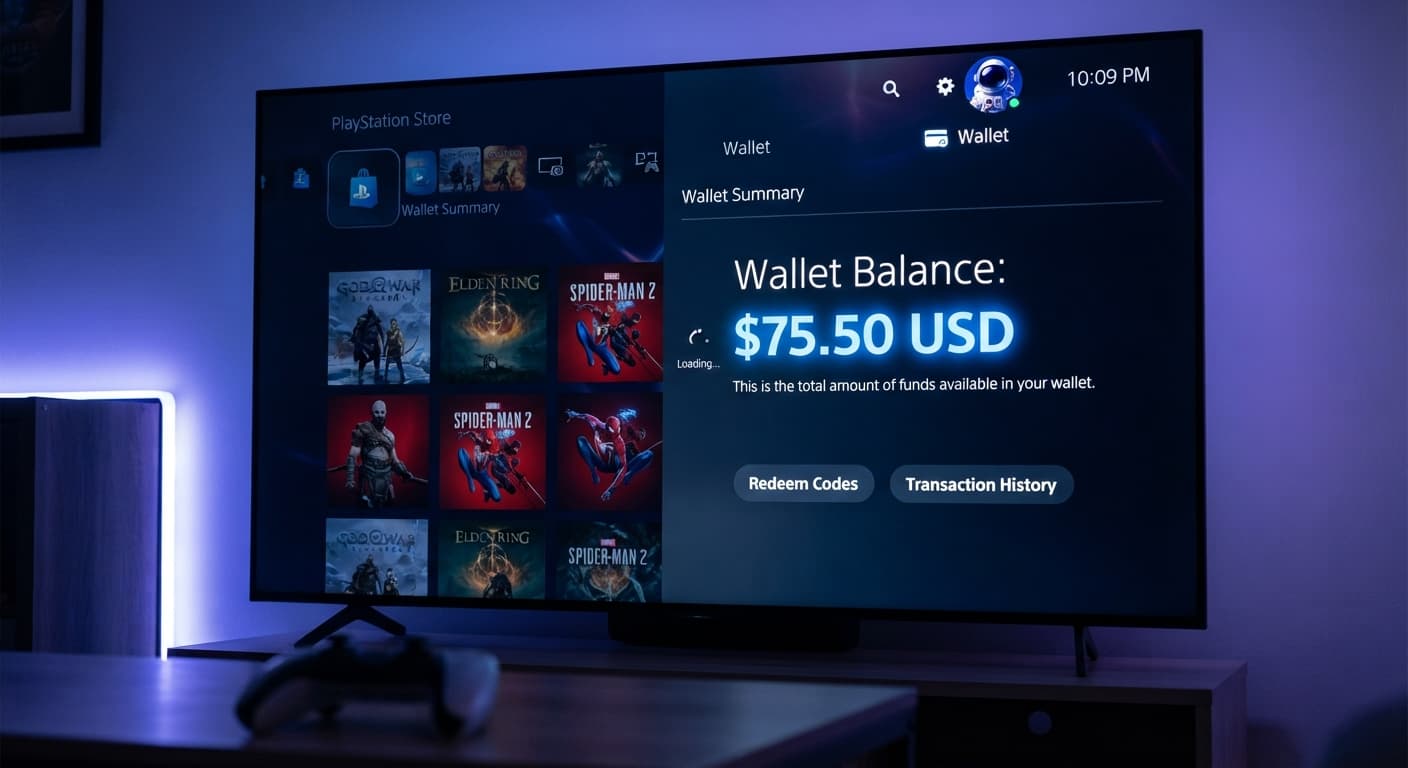
- Check your balance afterwards in How to check your PlayStation gift card balance.
Ready to top up? Browse our PlayStation gift cards and pay with bKash, Nagad, or Rocket.
Buy a PlayStation Gift Card
Instant 1–15 min code delivery to Email & WhatsApp. No international credit card required.